Validate Installation — Browser Extension
Use this page after pushing the Quilr browser extension (and the MSI / pkg that installs the native messaging agent) to confirm both pieces are running on the endpoint. There are three quick checks — all three must pass for the extension to be working end-to-end.
Why three checks? The extension is two cooperating pieces — the WebExtension in the browser and the
quilr-native-messaging-agentbinary installed by the MSI / pkg. They talk over Chrome / Edge's Native Messaging API. If either one is missing or stopped, the extension installs but captures nothing — so verify both, then verify they're actually talking to each other (Check 3).
Check 1. The extension is visible in the browser
Open the browser's extensions page:
| Browser | Path |
|---|---|
| Microsoft Edge | edge://extensions |
| Google Chrome | chrome://extensions |
| Safari (macOS) | Safari → Settings → Extensions |
Look for Quilr. It must be:
- Present in the list
- Enabled
- (MDM-pushed installs only) marked "Installed by your organization" with no Remove button
If the extension isn't there at all → re-check the deployment step for your MDM in the Deployment Guides section.
Check 2. The native messaging agent is running
The WebExtension only does anything useful when it can talk to the quilr-native-messaging-agent binary that the MSI / pkg installs. Verify the process is alive on the endpoint:
Windows
Open Task Manager → Details tab and look for quilr-native-messaging-agent.exe.
Or in PowerShell:
Get-Process | Where-Object Name -like '*quilr*'
You should see at least one row whose name contains quilr-native-messaging-agent.
macOS
Open Activity Monitor and search for quilr-native-messaging-agent.
Or in Terminal:
pgrep -lf 'quilr-native-messaging-agent'
You should see a PID and the process path.
If the process isn't there, the MSI / pkg either didn't install or its postinstall didn't start the agent. Re-deploy from your MDM (or run
msiexec /i Quilr.msi TENANT=<TENANT-ID> /qn/sudo installer -pkg quilr-installer-mac.pkg -target /locally). The native agent is required — the WebExtension is a no-op without it.
Check 3. The extension popup reports "Persona Active & Extension Enabled"
This is the end-to-end check — it proves the WebExtension and the native agent are actually talking to each other. Click the Quilr icon in the browser toolbar. The popup should look like this:
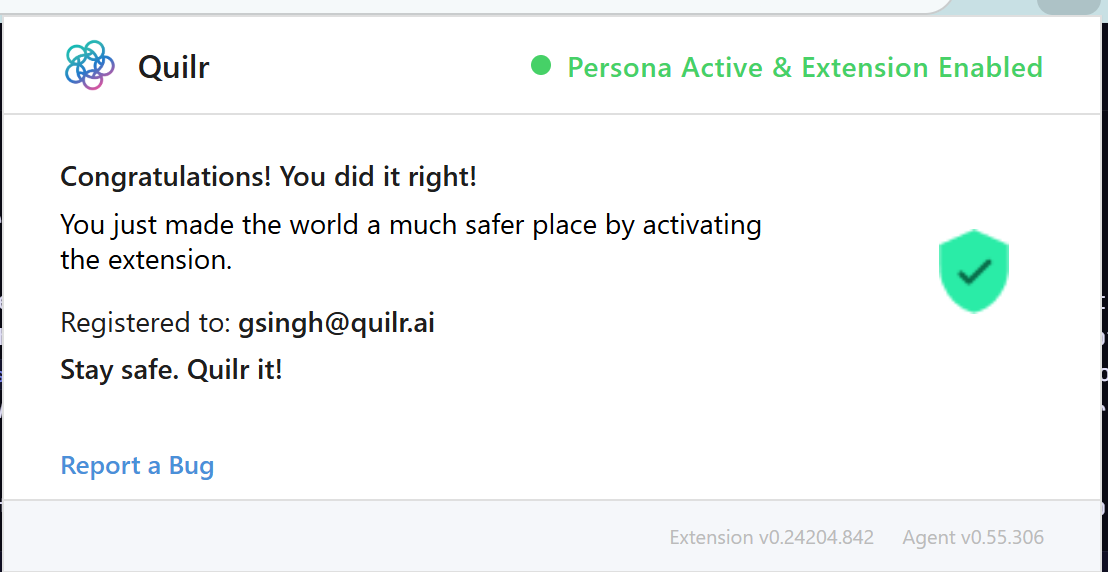
What every part of that popup tells you
| Element | What it means |
|---|---|
| 🟢 "Persona Active & Extension Enabled" | The WebExtension and the native messaging agent are both running, and the signed-in user (persona) has been resolved. This is the only "OK" state. |
| Quilr logo + branding | The popup loaded the bundled assets — proves the WebExtension itself rendered. |
| "Registered to: <email>" | The user the captured events will be attributed to. |
Extension v<…> (bottom-left) | WebExtension version — bumps when Quilr ships an extension update. |
Agent v<…> (bottom-right) | Native-agent version — = the version installed by the MSI / pkg. |
| Report a Bug (blue link, lower-left) | Opens a pre-filled email to Quilr support with the two version numbers appended automatically — always use this link when escalating an issue so the support team doesn't have to ask for them. |
When the status isn't green
| What you see | Likely cause | Where to look |
|---|---|---|
| Popup doesn't open at all | WebExtension not installed or disabled | Re-run Check 1 |
| Red dot / "Extension not connected" / "Native host missing" | Native messaging agent not running | Re-run Check 2 — restart the device or re-deploy the MSI / pkg |
| Yellow dot / "Persona not resolved" | User isn't signed into Quilr in this browser | Open https://app.quilr.ai/ in a tab and complete sign-in, then re-open the popup |
| Missing version numbers (Extension v… / Agent v…) | Popup loaded before the agent responded | Wait 2–3 seconds and retry; if it persists, re-run Check 2 |
| "Update available" banner | Native agent is older than the WebExtension expects | Push the latest MSI / pkg from your MDM |
For deeper diagnostics see Troubleshooting.
Pass / Fail summary
The installation is healthy when all three are true on the endpoint:
| # | Check | Method |
|---|---|---|
| 1 | Quilr extension visible and enabled in the browser | §Check 1 |
| 2 | quilr-native-messaging-agent running in Task Manager / Activity Monitor | §Check 2 |
| 3 | Popup shows green "Persona Active & Extension Enabled" with both version strings rendered | §Check 3 |
If any of the three fails, the events will not reach the Quilr console. The browser extension does not perform TLS interception — its source of truth is "is the popup green and does the event reach the console?", not a cert-chain inspection. (The "Issuer = Quilr" check in Validate Installation §4 applies to the Endpoint Agent, not the extension.)
Escalation
If the popup status is anything other than green after re-running the three checks, click Report a Bug in the popup itself (lower-left) — it auto-attaches Extension v… and Agent v…. Quilr support can also be reached at support@quilr.ai with the screenshot of the popup + the OS / browser version of the affected endpoint.